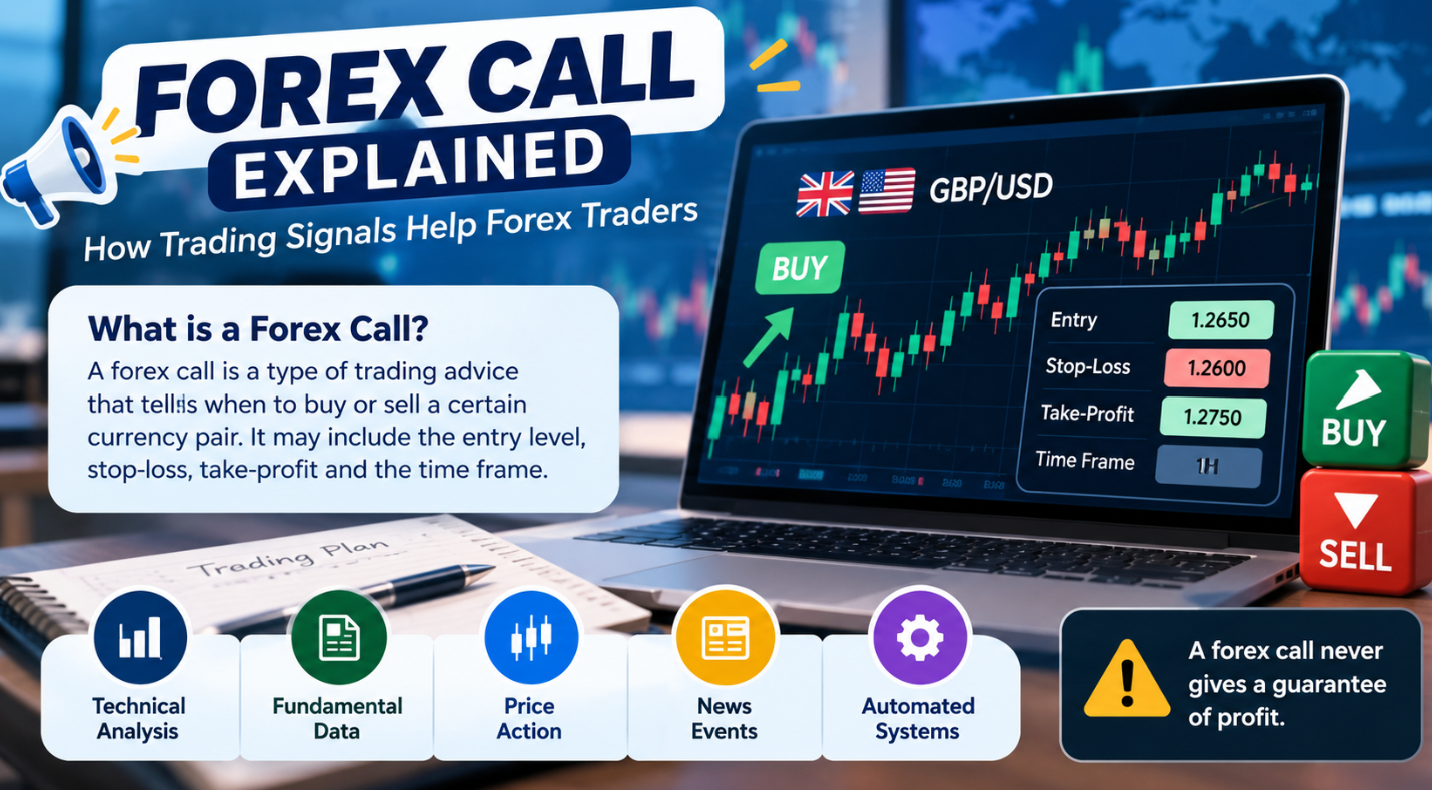
MetaTrader 4 forex trading combines a forex brokerage account with the MetaTrader 4 trading platform, commonly called MT4. The software provides charts, technical indicators, market and pending orders, trade-management controls, demo trading and support for automated strategies through Expert Advisors.
The first distinction beginners need to understand is that MetaTrader 4 is the trading platform, not the forex broker. MT4 gives you the interface and analytical tools, while the broker provides the account, price feed, execution, spreads, commissions, leverage, deposits, withdrawals and applicable regulatory protections.
That distinction matters because a professional-looking MT4 terminal does not prove that the company behind the trading account is regulated or offers competitive conditions. MetaQuotes itself describes MetaTrader 4 as trading and analysis software and does not provide brokerage or investment services.
What Is MetaTrader 4?
MetaTrader 4 is a trading and analytical platform developed by MetaQuotes. It remains focused heavily on forex and CFD trading and provides online quotes, interactive charts, technical indicators, several order types, trading history, alerts, Expert Advisors and strategy-testing tools.
The official platform currently includes two market-order types, four pending-order types, Stop Loss and Take Profit controls, 30 built-in technical indicators and nine standard chart timeframes. MT4 also supports custom indicators and automated trading applications written in MQL4.
Is MetaTrader 4 a Broker?
MetaTrader 4 is not a forex broker. It is the software through which a trader can connect to an account provided by an MT4 forex broker.
The broker supplies the trading account, server, available currency pairs, bid and ask prices, spreads, commissions, leverage, margin rules and execution conditions. It also controls deposits, withdrawals, account verification and the legal relationship with the customer.
This is why two traders using exactly the same MetaTrader 4 interface can experience different spreads, execution and account conditions when they connect to different brokers.
How MetaTrader 4 Forex Trading Works
The MetaTrader 4 forex trading process begins with a broker that supports MT4. Once a demo or live account has been created, the broker provides the account credentials and server information needed to connect the platform.
After login, the broker’s available instruments and quotes appear in MT4. The trader can then open a chart, analyse price action, add indicators, select an order type and manage positions through the platform.
A typical workflow looks like this:
| Stage | What Happens |
| Broker account | Broker provides account and server |
| MT4 login | Trader enters login, password and server |
| Market Watch | Broker-supported instruments and quotes appear |
| Chart | Trader views the selected currency pair |
| Analysis | Charts, indicators and drawing tools are used |
| Order | Trader chooses volume, order type and risk controls |
| Trade management | Position, equity, margin and P/L are monitored |
MetaTrader’s official account-opening documentation confirms that users can connect existing trading accounts by entering the relevant login, password and selected server. Demo accounts can also be created for training with virtual funds.
MetaTrader 4 Interface Explained for Beginners
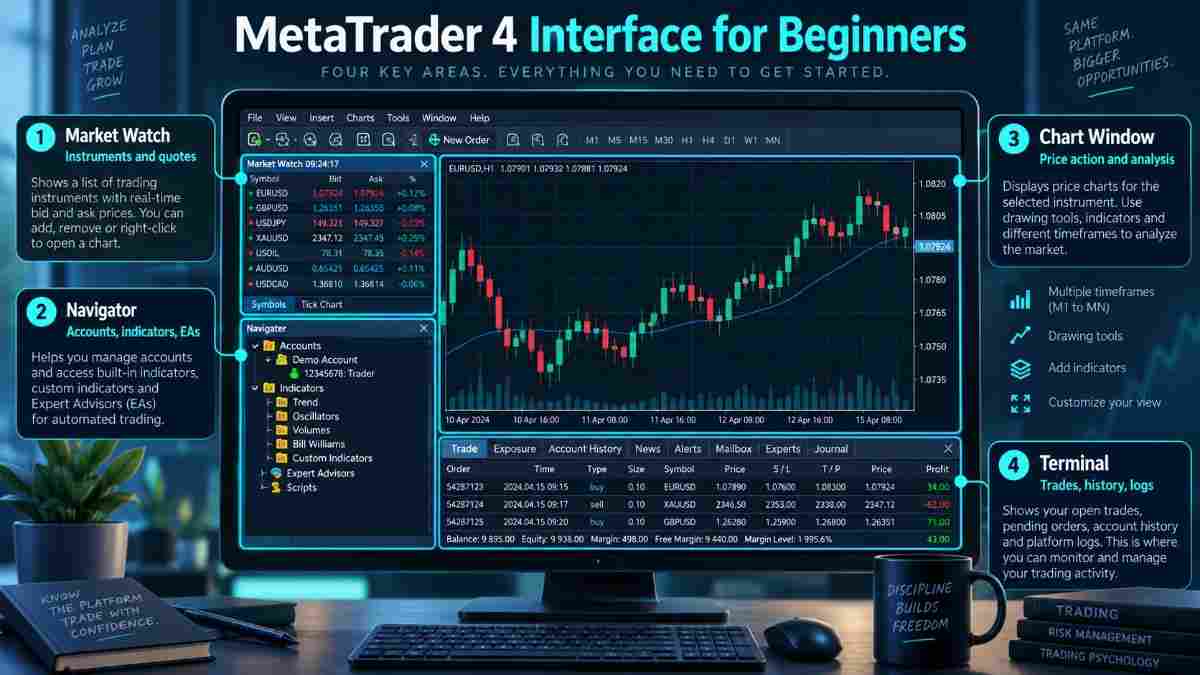
For someone opening MetaTrader 4 for beginners, the number of panels can initially make the software look more complicated than it is. The main areas become easier to understand once each is connected with a specific task.
Market Watch
Market Watch displays the financial instruments and bid/ask quotes supplied through the connected broker. From this panel, users can open charts, launch order windows and show or hide available symbols.
If EUR/USD does not appear immediately, that does not necessarily mean the pair is unavailable. The visible Market Watch list can contain only a selection of the instruments supported by the broker.
Navigator
Navigator contains items such as trading accounts, built-in and custom indicators, Expert Advisors and scripts. This is also one of the areas beginners use when adding an indicator or EA to a chart.
Chart Window
The chart window displays historical and current price information for the selected instrument. Traders can change chart style, timeframe, colours and analytical tools without changing the underlying brokerage account.
Terminal
The Terminal window contains important operational information, including open trades, account history, alerts and platform logs. It is particularly useful for monitoring current positions, commissions, swaps, profits and losses.
After learning the basic layout, BrokerSuggestion’s MetaTrader tutorial covers additional platform functions.
How to Open a Forex Chart on MT4
Open Market Watch and locate the currency pair you want to examine. Right-click the symbol and select Chart Window, or drag the instrument onto the chart area.
Pairs such as EUR/USD, GBP/USD, USD/JPY and USD/CHF are common examples for learning how quotes work, but they should not be interpreted as trading recommendations. The appropriate instrument depends on the trader’s strategy, broker offering and risk tolerance.

MT4 supports bar, candlestick and line charts. Candlestick charts are particularly popular because each candle visually represents the open, high, low and close for the selected period.
MT4 Chart Timeframes
MetaTrader 4 provides nine standard chart periods: M1, M5, M15, M30, H1, H4, D1, W1 and MN. These range from one-minute observations through monthly price structure.
There is no universally best timeframe. A short-term trader may examine intraday periods, while a trader interested in broader market structure may focus on four-hour, daily or weekly charts.
Changing the timeframe changes how price information is grouped visually. It does not change the underlying market or automatically make one trading signal more reliable.
How to Trade Forex on MT4
Learning how to trade forex on MT4 starts with the New Order window. It can be opened through the toolbar, from Market Watch, through relevant menus or with the F9 shortcut.
Select the currency pair and choose the trade volume, which is generally expressed in lots. Position size should be calculated according to account risk rather than chosen solely according to how much profit a trader hopes to make.
The order window can also include Stop Loss and Take Profit fields. These controls allow the trader to define potential exits before or after opening a position.
A Stop Loss is intended to close a position when price moves adversely to a selected level. It should not be described as guaranteeing an exact fill in every market condition because price gaps and slippage can result in execution at a different available price.
BrokerSuggestion’s guide to stop loss forex trading provides more detail on how stops interact with execution and volatility.
MT4 Forex Order Types Explained
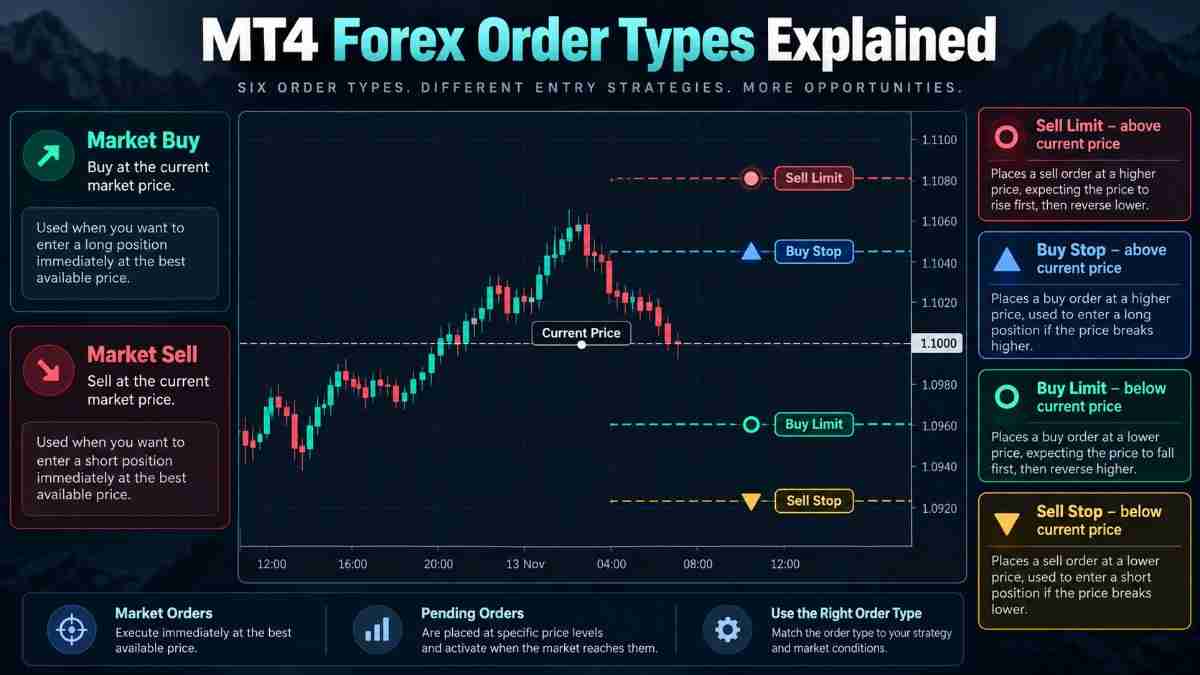
The MetaTrader 4 trading platform supports both immediate market orders and conditional pending orders. Understanding where each pending order sits relative to current price makes the terminology much easier to remember.
| Order | Relative Position | Basic Purpose |
| Market Buy | Current available market | Open a long position |
| Market Sell | Current available market | Open a short position |
| Buy Limit | Below current price | Buy if price falls to a specified lower level |
| Sell Limit | Above current price | Sell if price rises to a specified higher level |
| Buy Stop | Above current price | Buy if price rises to a specified higher level |
| Sell Stop | Below current price | Sell if price falls to a specified lower level |
MetaTrader’s official help documentation confirms these four pending-order structures and explains that Stop Loss and Take Profit levels can be attached to pending orders.
These definitions describe how the orders work mechanically. They do not imply that buying above or below a certain price is an appropriate strategy in a particular market.
How to Modify or Close an MT4 Trade
Open the Terminal’s Trade section and locate the relevant position or pending order. Right-clicking the trade provides options for modifying or closing the order, depending on its current status and the broker’s permitted conditions.
Stop Loss and Take Profit levels can normally be changed after entry when the broker’s minimum-distance and instrument rules permit it. Pending orders can similarly be modified or deleted before they are triggered.
One-click trading can make order entry faster, but it also removes an additional confirmation step. Beginners should understand exactly what the feature does before enabling it.
What Is an MT4 Demo Account?
An MT4 demo account uses virtual funds so traders can practise using the platform without initially exposing real trading capital. The official MetaTrader documentation states that demo accounts offer the same core platform functionality while using simulated money.
A demo environment is useful for learning chart navigation, order placement, pending orders, Stop Loss, Take Profit, indicators and basic position sizing. Expert Advisors can also be tested in a training environment before a trader considers using automation with actual funds.
| Feature | MT4 Demo | MT4 Live |
| Capital | Virtual | Real |
| Financial loss | Simulated | Real |
| Platform practice | Available | Available |
| Emotional pressure | Usually lower | Usually higher |
| Execution | Demo environment | Live broker conditions |
| Withdrawals | Not applicable | Broker rules apply |
Successful demo results do not guarantee successful live MT4 forex trading. Real trading introduces financial pressure, changing spreads, slippage, liquidity differences and actual transaction costs.
MT4 Forex Indicators Explained
MT4 includes 30 built-in technical indicators and also supports custom tools. Indicators can help organise price information, but they should support analysis rather than be treated as automatic prediction systems.
A Moving Average smooths historical price information and can help traders examine trend direction. Because it is calculated from historical data, it can lag current price movement.
The Relative Strength Index, or RSI, is commonly used to examine momentum and relative overbought or oversold conditions. An overbought reading does not automatically mean price must fall, just as an oversold reading does not guarantee a rebound.
MACD combines moving-average relationships to provide trend and momentum information. Like other historical-price indicators, it can react after price has already changed.
Bollinger Bands use a moving average and standard-deviation bands to provide volatility context. Expanding or contracting bands can reflect changing volatility, but contact with a band is not automatically a reliable reversal signal.
For installation instructions and more examples, see BrokerSuggestion’s guide on how to add and use indicators in MetaTrader 4.
Built-In vs Custom MetaTrader 4 Forex Indicators
Built-in MetaTrader 4 forex indicators are included with the platform and cover tools such as Moving Average, RSI, MACD, Bollinger Bands and Stochastic Oscillator. They provide a standard starting point for technical analysis without requiring additional downloads.
Custom indicators can be created using MQL4 or installed from external sources. A paid, popular or “AI-powered” indicator should not automatically be assumed to be reliable, because its calculation method, repainting behaviour and historical assumptions still need to be understood.
Adding more indicators does not necessarily create stronger confirmation. Two indicators derived from similar price inputs can produce correlated signals rather than independent evidence.
What Is an MT4 Expert Advisor?
An MT4 Expert Advisor, usually shortened to EA, is an MQL4 program that can automate analytical or trading tasks according to predefined rules. Official MT4 documentation states that Expert Advisors can analyse price information and perform automated trading operations.
An EA might monitor indicators, identify a programmed condition, open or close orders and manage Stop Loss or Take Profit levels. It follows coded logic rather than independently predicting future currency prices.
Automated trading must also be enabled through MT4’s settings or AutoTrading control before an EA is allowed to execute trades. MetaTrader’s Expert Advisor settings explicitly allow automated trade operations to be switched on or off.
Unknown EAs should be tested and understood before they are considered for a funded account. Automation makes rule execution faster, but it does not remove strategy, execution or market risk.
MT4 Strategy Tester and Backtesting
MetaTrader 4 includes Strategy Tester for evaluating Expert Advisors against historical market data. Users can select parameters such as the instrument, testing period and EA settings, then examine historical trades, profitability, drawdown and other report information.
Backtesting can help identify how an automated strategy behaved under the historical data and assumptions used in the test. It cannot prove that the same results will occur in future trading.
Changing market conditions, spread differences, slippage, historical-data quality and over-optimisation can all create a gap between a backtest and live performance. Historical testing should therefore be one research step rather than evidence of guaranteed profitability.
MT4 Trading Strategies: Building a Simple Framework
MT4 trading strategies should begin with clear rules rather than a collection of random indicators. A beginner can start by selecting one market and timeframe, then determining whether the analysis is focused on trending or ranging conditions.
Mark important price levels and use a limited number of analytical tools where they add useful information. For example, one trend indicator and one momentum indicator may be easier to interpret than five indicators measuring similar underlying data.
Entry criteria, Stop Loss, position size and exit rules should be established before the order is placed. Risk should determine position size rather than the amount of profit the trader wants to make.
This is an educational analysis framework rather than a trading recommendation. No combination of MT4 tools guarantees profitable results.
MetaTrader 4 vs MetaTrader 5
MT4 and MT5 are separate MetaQuotes platforms rather than simple old and new versions of the same terminal. MT4 remains strongly associated with forex workflows, while MT5 provides broader multi-asset architecture and additional features.
| Feature | MT4 | MT5 |
| Historical focus | Forex/CFDs | Broader multi-asset use |
| Programming language | MQL4 | MQL5 |
| Standard timeframes | 9 | 21 |
| Expert Advisors | Yes | Yes |
| Strategy testing | Yes | Expanded |
| Built-in economic calendar | More limited | Built in |
Neither is universally better for every trader. Broker support, required markets and the tools a user actually needs are more relevant than choosing solely on version number.
BrokerSuggestion’s full MT4 vs MT5 comparison examines these differences in more detail.
Desktop, Web and Mobile MT4
Desktop MT4 provides the fullest environment for chart analysis, custom indicators, Expert Advisors, development and strategy testing. This is generally where advanced MQL4 and automated-trading workflows are managed.
Web and mobile access can be useful when traders need to monitor markets or manage positions away from the desktop terminal. MetaQuotes currently provides mobile MT4 versions supporting trading functions, charts and technical indicators.
The specific platforms and account features available can still depend on the connected broker. Users comparing alternatives can review BrokerSuggestion’s guide to the best forex trading platforms for beginners.
How to Choose an MT4 Forex Broker
Do not choose an MT4 forex broker merely because its server appears inside MetaTrader. Platform compatibility does not establish regulation, good execution or reliable withdrawals.
Start by identifying the broker’s exact legal entity and checking its regulatory status with the relevant official authority. Then compare available currency pairs, typical spreads, commissions, overnight swap rates and account conditions.
Execution also matters because the broker supplies the prices and conditions under which orders are processed. The CFTC warns U.S. retail traders that OTC forex activity occurs with the dealer rather than on an open exchange and specifically recommends researching registration, fees and withdrawal conditions before depositing funds.
Review leverage and margin without automatically choosing the highest available ratio. Leverage can magnify gains, but it can also accelerate losses and account drawdowns.
Finally, examine withdrawal methods, fees, verification requirements and customer support. BrokerSuggestion’s guide on how to choose a forex broker provides a broader due-diligence framework.
MT4 Forex Trading Costs to Understand
MT4 itself does not determine the total cost of a forex position. The broker can charge through spreads, commissions, overnight financing, currency conversion, inactivity charges and deposit or withdrawal fees where applicable.
A raw account advertising a 0.0-pip minimum spread can still charge a commission per lot. A zero-commission account may instead incorporate more of the broker’s compensation into the spread.
This is why spreads should not be compared in isolation. BrokerSuggestion’s RAW spread vs zero commission guide explains how the two pricing structures can produce different total costs.
Risk Management When Trading Forex on MT4
The ease of opening an order through MT4 does not reduce market risk. Before submitting a trade, a trader should understand the position size, leverage, margin requirement and maximum planned loss if the market moves against the position.
Stop Loss can be part of that plan, but account risk should not depend on the stop alone. Gaps, fast markets and slippage can affect execution, while several correlated currency positions can create more total exposure than each position appears to carry individually.
A useful principle is to define acceptable risk first and calculate position size second. Increasing volume simply because MT4 makes order entry convenient reverses that process.
Common MetaTrader 4 Beginner Mistakes
Beginners often assume that MT4 and the broker are the same business, which can cause them to overlook regulation, fees and withdrawal conditions. Another common mistake is moving directly into live trading before learning platform controls through a demo account.
Excessive leverage, too many indicators and untested Expert Advisors can create additional risk. Traders may also ignore spread and commission, trade without predetermined loss limits or assume profitable backtests guarantee future returns.
One-click trading deserves particular care because enabled orders can be submitted without a normal confirmation dialogue. BrokerSuggestion’s guide to common beginner mistakes in forex trading covers these behavioural issues in more detail.
Simple MetaTrader 4 Beginner Checklist
Before considering real-money MetaTrader 4 forex trading, a beginner should be able to log in to the correct broker server, find an instrument, open a chart and change the timeframe. They should also understand bid and ask pricing, spread, lot size, margin and account equity.
The trader should know how to place market and pending orders, add Stop Loss and Take Profit, modify a trade and close a position. They should also be comfortable adding indicators, reading trading history and explaining the broker’s main charges.
Just as importantly, the user should understand the difference between demo and live execution. Platform familiarity is useful preparation, but it does not make forex trading low risk.
Final Thoughts
MetaTrader 4 forex trading provides a flexible environment for analysing currencies, placing and managing orders, applying technical indicators, practising through demo accounts and automating predefined strategies with Expert Advisors.
MT4 should nevertheless be understood as the trading platform rather than the broker and certainly not as a guarantee of profitable trading. The broker determines pricing, execution, leverage, fees, account terms and withdrawals, while the trader remains responsible for strategy and risk management.
Beginners should start with an MT4 demo account, learn the order controls and position-sizing process, keep technical analysis manageable and test any strategy or EA before considering real-money use. They should also verify the broker independently rather than assuming that availability through a familiar platform establishes legitimacy.
Disclaimer
Forex and CFD trading involve significant risk and can result in loss of capital. MetaTrader 4 is a trading platform and does not itself guarantee broker reliability, trading performance, execution quality or investment returns.
Technical indicators, Expert Advisors, trading strategies and historical backtests do not guarantee future results. Broker spreads, commissions, leverage, execution conditions, account protections and withdrawal rules can vary by jurisdiction and provider, and this article is for educational purposes only rather than financial, investment or trading advice.
FAQs
What is MetaTrader 4 forex trading?
MetaTrader 4 forex trading means using the MT4 software to analyse currency markets and place or manage forex positions through a connected brokerage account. MT4 provides the interface and tools, while the broker supplies the trading account and execution.
Is MetaTrader 4 a forex broker?
MetaTrader 4 is trading software rather than a forex broker. The broker provides pricing, execution, leverage, deposits, withdrawals and account terms, while MT4 provides the interface used to access those services.
How do I trade forex on MT4?
Connect an MT4-supported broker account, select a currency pair and open the New Order window. Choose the trade volume and order type, add relevant risk controls, review the details and then submit the order.
Can beginners use MetaTrader 4?
Beginners can use MT4, particularly through a demo account that allows them to practise charts, orders, indicators and trade management using virtual funds. Platform practice should be combined with education about leverage, costs and risk.
Is an MT4 demo account free?
MetaTrader 4 supports demo trading with virtual funds, although availability, account duration, virtual balance and instrument conditions can depend on the connected broker or server. Demo funds cannot be withdrawn as real money.
What indicators are available in MetaTrader 4?
MT4 includes 30 built-in technical indicators, including Moving Average, RSI, MACD, Bollinger Bands and Stochastic Oscillator. Custom indicators written in MQL4 can also be installed, but neither built-in nor custom tools guarantee reliable predictions.
What is an MT4 Expert Advisor?
An MT4 Expert Advisor is an MQL4 program that automates analytical or trading tasks according to predefined logic. It can monitor markets and manage orders, but its performance depends on the strategy, programming, parameters and market conditions.
Can an MT4 Expert Advisor guarantee profits?
An Expert Advisor cannot guarantee profitable trading because it follows programmed rules rather than knowing future price direction. Changing markets, costs, execution and poor strategy design can all cause an EA to perform differently from historical tests.
Can I backtest a strategy in MetaTrader 4?
MT4 includes Strategy Tester for evaluating Expert Advisors on historical market data. Backtests can show historical trades, profit patterns and drawdowns, but data quality, overfitting and changing future conditions limit what those results can establish.
Is MT4 better than MT5 for forex?
Neither platform is universally better. MT4 remains closely associated with forex and MQL4 workflows, while MT5 provides broader functionality, more timeframes and a newer multi-asset architecture, so the appropriate choice depends on broker support and user needs.
How do I choose an MT4 forex broker?
Compare the exact legal entity, regulation, typical spreads, commissions, swap fees, execution, leverage, demo conditions, withdrawal rules and customer support. MT4 compatibility should be treated as one platform feature rather than proof of broker quality.
Can I use MT4 on my phone?
MetaTrader 4 provides mobile applications that support chart viewing, indicators, order placement and position management on supported devices. More advanced Expert Advisor development, custom-code management and strategy testing remain primarily desktop-oriented workflows.